Search This Blog

Showing posts with label Google. Show all posts

Tuesday, March 3, 2015

Different First Page Header in Google Docs!


For those who want to abide by MLA and APA rules, Google made an update that you’ll want to know about.  Now, you can easily create a first page that has a different header than the rest of your paper.


Start by creating a new document.

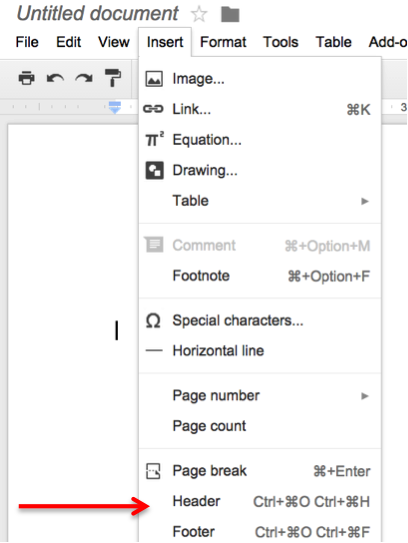
Next, go to INSERT and choose HEADER.

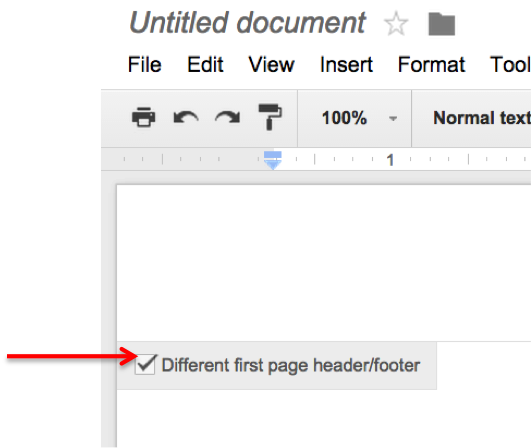
(You can also double click in the header space.)  Then, check the box that says Different first page header/footer. 

Put whatever header you want on the first page OR leave it blank.

When you get to the second page, double click the header section, and type your information. 

Done!


Thursday, February 19, 2015

Padlet: An Oldie But A Goodie

Technology has given students the ability to share information globally.  Collaboration opportunities are everywhere, and Padlet is just one way to communicate, express ideas and share information with peers.

Padlet, a user-friendly website is a "wall" where students can post content, thoughts, videos and pictures.  It is accessible from any device with an internet connection, so creating or adding to a Padlet can be done any time, anywhere.

Padlets can be shared, embedded, and downloaded into PDFs, Excel sheets and jpegs. And of course, as a huge fan of all things Google, I was thrilled when I found the Padlet Chrome extension, which allows users to share content directly with a wall they have created.   That. Is. Awesome! But wait, there's more!  With Padlet, you have infinite space.  Keep double clicking and the screen will adjust.

Nervous about everyone adhering to proper netiquette which using Padlet?  Visibility of the walls you create are completely customizable.  In addition, as the administrator of your wall, you can moderate comments and posts.

There are SO many ways to use this tool in the classroom. Below you'll see a Padlet that gives ideas to get you started.  Feel free to add!


Thursday, January 8, 2015

Google Classroom Tutorial

In an effort to reach more staff for professional learning, this month's Tech Wednesday went digital with a webinar introducing Google Classroom to those who have yet to use it.

Thursday, November 6, 2014

Google Chrome: You'll Love It!

Everyone knows I fell in love with Google a long time ago.  What's great is that our "relationship" continues to flourish  as Google products just seem to get better and better as time goes on.

I've discussed Google Chrome before on the Technology Toolbox website.  I like the browser because it's fast, secure and I can personalize it in a myriad of ways.  In addition, I can have my bookmarks, extensions and apps on any computer I use when I log in to the browser.  That is a huge plus!  Top10Reviews reported that:

Google has taken initiative in making Chrome very compatible with the internet. Chrome was specifically designed to quickly and efficiently load, display and interact with the vast array of applications on the web, boasting a built-in Flash and PDF reader. The synchronization between your smartphone and your desktop browser makes saving favorites and making bookmarks a seamless process.  Most internet browsers are built for function over form, but Google Chrome succeeds in both. The layout is clean, intuitive and well organized, and Chrome manages a level of simplicity other internet browsers lack. Its features are clearly designed for efficiency and ease of use, and you can search and navigate from the same box. Furthermore, the browser allows you to conveniently create shortcuts to web applications you regularly use, which you can place on your desktop for quick and easy access.

Another reason for teachers in our district to use Google Chrome is compatibility.  If you use Hutchdocs, Google Classroom etc., they work better in Chrome because they all have the same creator - Google .

 The bottom line is, that if used correctly, Chrome can help you with your productivity, connectivity and will provide tools to help you differentiate for your students (SpeakIt, Yellow Highlighter, and Awersome Screenshot Capture/Annotate to name a few). I've been a teacher long enough to know that the proof is in the pudding.   So here is a presentation explaining the "how to" behind Chrome settings and extensions, and links to great extensions for educators.  My favorites are highlighted.

Have a favorite extension or app you're using in the classroom?  Please share it in the comments below.

Monday, July 28, 2014

Free Technology Posters - Just in time for back to school

Just like any teacher, I love a good freebie!  What's more, freebies that I can hang in my classroom are even better.  That's what this post is all about....free technology posters.

The first website is full of information and printable posters.  For elementary/middle school folks, this set may be what you're looking for. Navigate to the website  WE are TEACHERS and click DOWNLOAD to gain access to eight "tech etiquette" posters like these:


Next up is a group of posters that help remind us "how to" in Google.  This set of eight posters can be found here:


Technology Rocks, Seriously is a great little blog.  She has some terrific freebies located on her "school posters" link.  You can find things like this:

And finally, you'll hit the freebie motherload when you visit Venspired.  She is truly talented and freely shares her creations with teachers.  By clicking on her Posterpalooza link at the top of her home page, you'll have access to posters like these:

Enjoy putting your rooms together!  Watch for "Google Forms Part 2" later this week.

Tuesday, July 22, 2014

Google Forms: The Coolest App in Google Drive That You May Not Be Using - Part 1

It’s the end of July, folks.  The cicadas are sounding, the aisles at your local Target and Walmart are filled with excited kids and exasperated parents looking for all the items on back to school lists, and teachers are slowly making their way back to their classrooms to prepare for a new year.  To that end, I want to share some tips and tricks that might make the new year run more smoothly for you.  


All district teachers have a Hutchdocs account.  For those of you who’ve been sleeping or simply not reading my blogs (SMH), Hutchdocs is just another name for Google Apps for Education but it’s tailored to our district.  I digress.  One of the coolest feature of Hutchdocs is the ability to create FORMS.  Sounds boring, I know, but it can really be life-changing. In Part 1 of this three part series we'll discuss data collection.


Data Collection
The sky’s the limit with data collection and Hutchdocs when using Forms.  Teachers can collect:
  • IEP Goals
  • Intervention Data
  • RTI Data
  • Classroom Data
  • Online Reading Logs/Records
  • Parent/Teachers Conference Data
  • Incident Reports


Administrators can get in on this, too!  Click here to see examples of walk-through forms, custodial request forms, school hotline forms and more.

For those new to Google Forms
Eric Curts does a fantastic job of explaining Google Forms.  The screenshots below are courtesy of his website.


Creating Forms


Adding Questions
There are multiple question types from which to choose.  In addition, Forms has updated to let you add pictures and video links as well.  


Seeing Results
The great thing about Forms and results is that they automatically are compiled in SPREADSHEET, Google’s version of Excel.  You can view the results by looking at the sheet, or by graph (automatically created for you).  This is such a simple way to collect important data!


Want more on Google Form creation?  Click here to continue to Eric's full tutorial.  Next up in our "Google Forms" series:  Behavior Management.


Wednesday, December 12, 2012

Technology - Use It!

COMPASS http://compass.usd308.com/clologin.aspx
The Compass of today is quite different than some of you are used to. Progress monitoring and reinforcing skills are just two ways this program can be used. With Common Core lessons and better graphics, Compass is a fantastic tool.  Contact me if you need your login information.  

EDMODO  http://usd308.edmodo.com/
Use Edmodo to manage your classroom, create polls and quizzes and communicate with parents.  

FURLY  http://fur.ly/
This is a phenomenal site for students working on projects.  Enter as many as 50 urls and they can all be located at one address via a pulldown menu at the top of the page.  Incredible.

GOOGLE DOCS http://docs.google.com/
Students can work on documents, spreadsheets, and presentations individually and collaboratively with this dynamic tool. 

GOOGLE  EARTH earth.google.com
Allow students to travel all over the Earth, into the stars, and undersea with Google Earth!  

QR STUFF www.qrstuff.com
You and your students can create scanable QR codes to be used to give students access to information like:

  • An online video that students can watch on their own
  • Today's homework
  • An article in a newspaper for current events
  • An online quiz or poll
  • A simulation or game
  • An image or presentation
  • A scavenger hunt
  • A place for the students to write on a topic at hand
  • A shared Google doc in which multiple students can contribute ideas
 

REMIND 101  https://www.remind101.com/
A free, safe way to text your students and their parents without revealing your phone number!  A great communication tool.

SMARTboard www.exchange.smarttech.com/
It’s called an INTERACTIVE whiteboard for a reason.  Use your SMARTboard for something other than projection!  Get your student actively engaged in their learning.  Resources are unlimited.  Use our technology website (http://usd308tech.weebly.com ) for templates and resources, SMARTexchange, or simple google “interactive whiteboard lessons” and see what’s available.  

SPELLING CITY:  www.spellingcity.com
When teachers sign up for a free membership, they get their own homepages, where they can enter and save customized word lists that their students can access. These word lists may be used in a variety of games and activities.

ToonDoo http://www.toondoo.com/
Have students create a comic strip using ToonDoo.  Students can use this tool to show main idea, sequencing, predictions, and more!

SUPER TEACHER TOOLS  www.superteachertools.com
Create seating charts, groups, and randomly pick names within seconds!  To maximize your use of this tool, take a couple minutes to create a class list that will be saved online.  Pretty cool, and really easy to create and use.